Add a card on multiple days of the week
Use a Scheduled automation to add a card on multiple days of the week
Automatically create cards according to a custom schedule. For example, if you have regular tasks on Monday, Wednesday and Friday, you can create one automation for multiple selected days.
New to Trello automation? Check out our beginner’s guide to Trello automation to get started. Plus, find out more about automating emails with the Email for Trello Power-Up.
1. Select scheduled automation
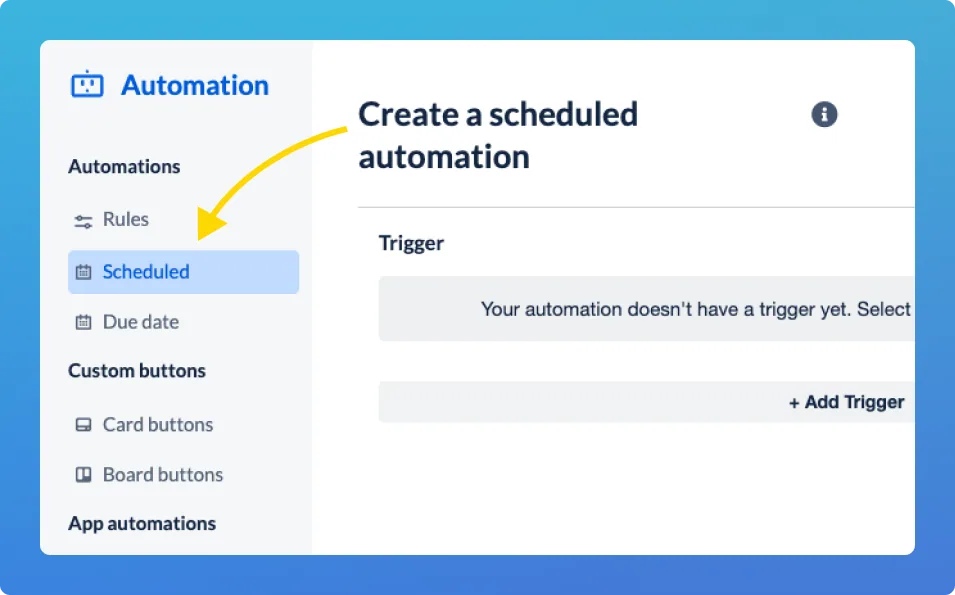
To set it up, select ‘Scheduled’ from the list of available Trello automations in the left-hand panel
2. Set up the trigger
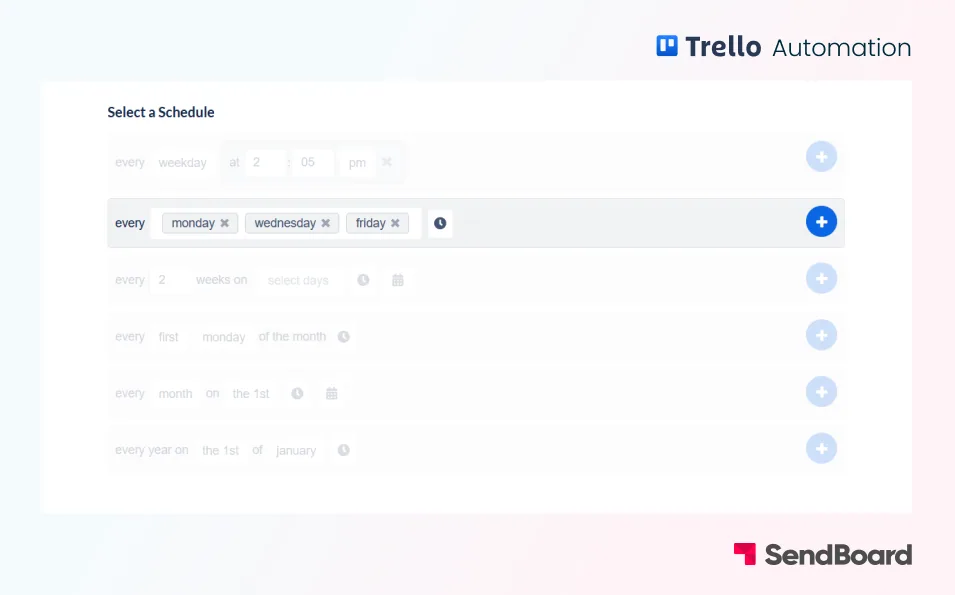
Trigger: Every Monday, Wednesday and Friday
2. Select the action
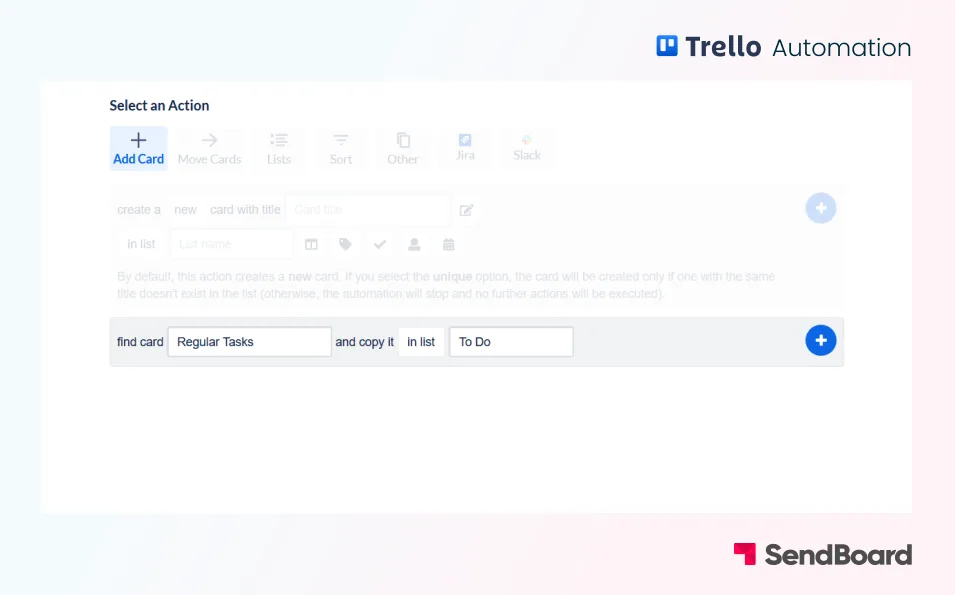
Action: Find card “Regular Tasks” and copy it to the top of the list “To Do”