
Automatically send timed follow-up emails from Trello
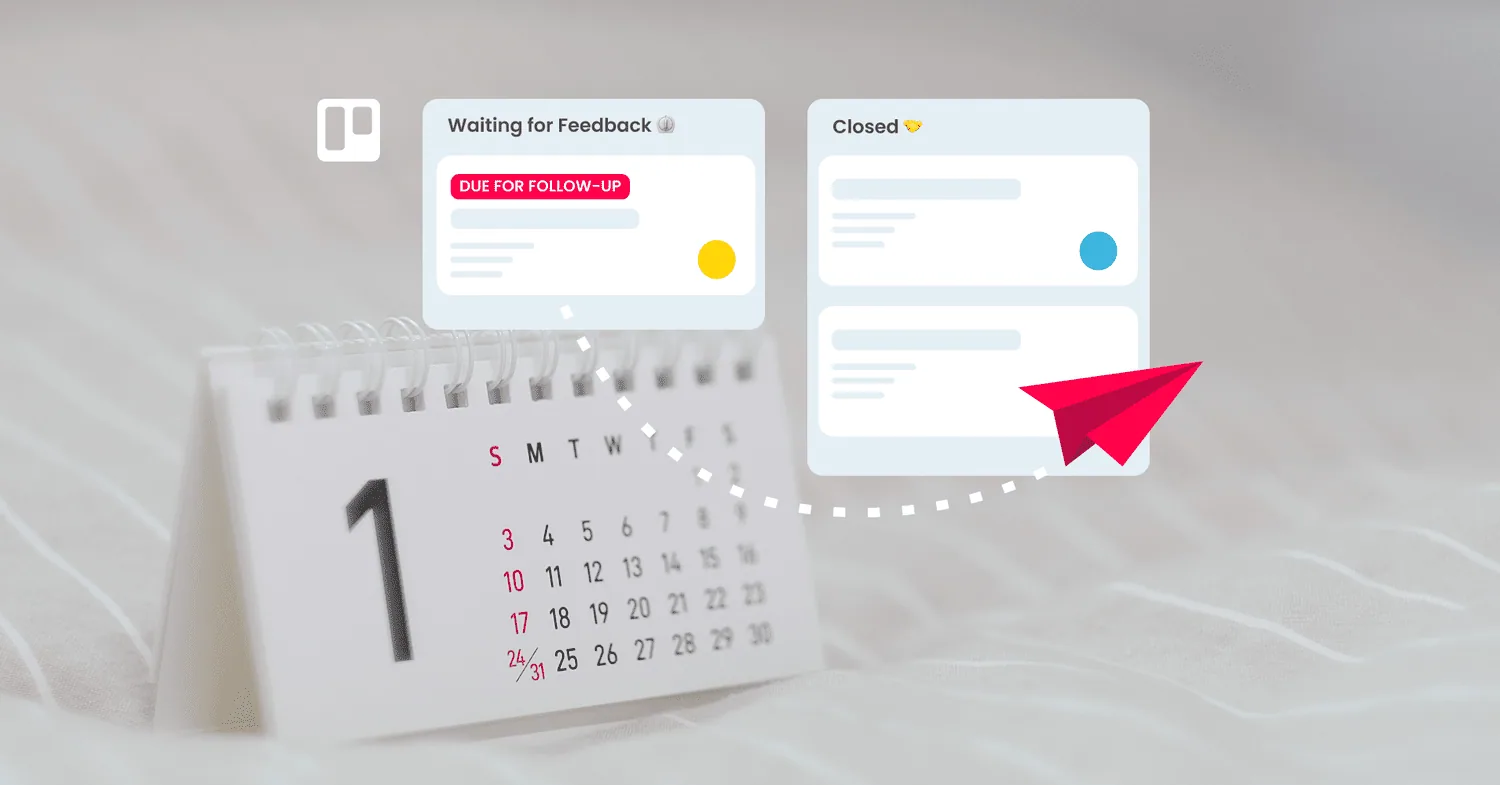
Make sure no-one falls off your to-do list! This useful Trello automation can automatically send a follow-up email after a chosen number of days.
Today we’ll show you how to automate your follow-up emails with Trello automation and Email for Trello. With just two super simple rules, you can automatically send a follow-up email after a certain number of days. Plus, you can also set up an optional safeguard to make sure your automation never sends a follow-up by mistake.
It’s a powerful workflow that’s guaranteed to lessen your email workload. Let’s get the bots doing the heavy lifting!
Set up your workspace
First off, we need to configure your Trello workspace. Let’s imagine you have a CRM deal pipeline in Trello consisting of the following lists. Your email cards move from left to right as they progress through your workflow, offering you a real-time visual overview of your deals and customers.
- Inbox: Emails from potential leads arrive as new cards in Trello.
- In Progress: Communicate with interested customers via email. All conversations are conveniently accessible on each email card, making it easy to collaborate with your colleagues.
- Waiting for Feedback: Keep track of who’s where in the pipeline! Reached out and waiting for a reply? Stash your conversation on the ‘Waiting’ list so that you know who to follow-up with later.
- Closed: You can pat yourself on the back! The hard work is done and you’ve closed another deal.
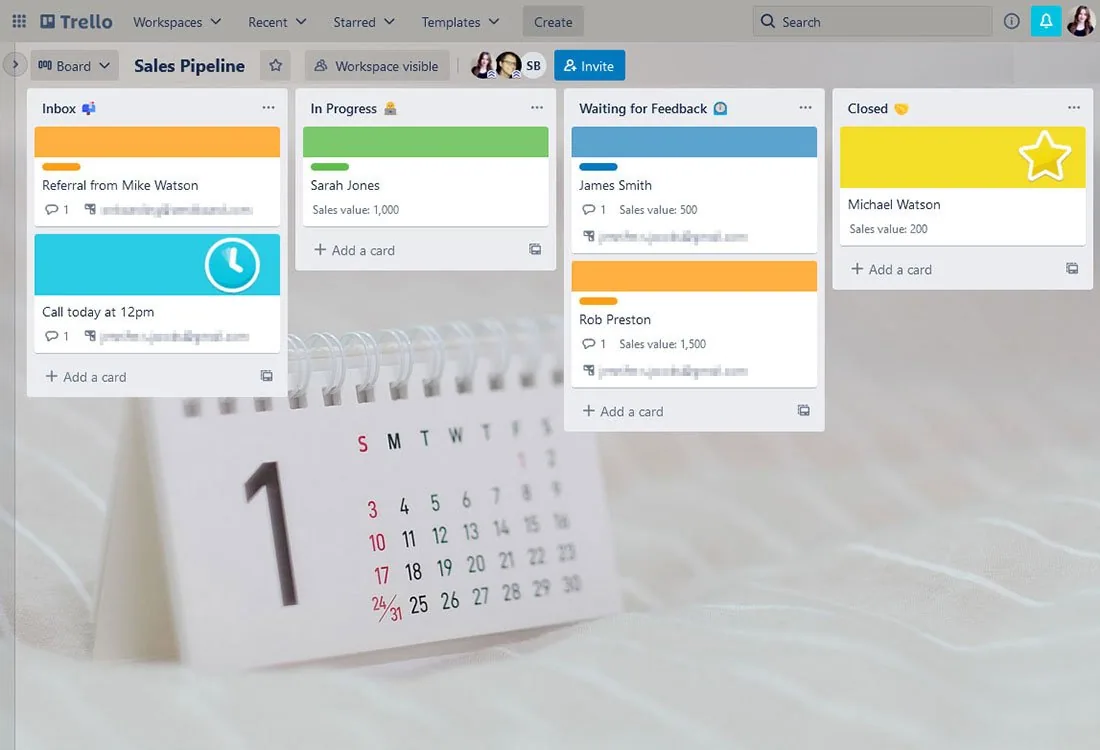
A simple example sales and CRM workspace in Trello
Now let’s look at how we can make it easier to send follow-up emails using Trello automation.
The first rule
Set how many days to wait
To set how many days to wait before sending a follow-up email, we’re going to use a simple automation rule. This is what the rule looks like:
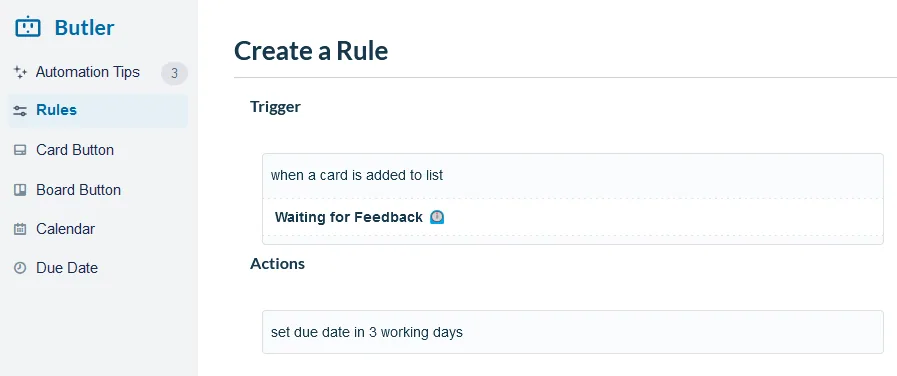
Now, once a conversation is moved into the list ‘Waiting for Feedback’, the due date will be set for 3 working days’ time.
The second rule
Send out an automatic follow-up email
Now we actually send out our follow-up email! To do this, create a due-date command.
This rule will automatically send out a Saved Reply if the due date is “due” and the card is still in the ‘Waiting for Feedback’ list.
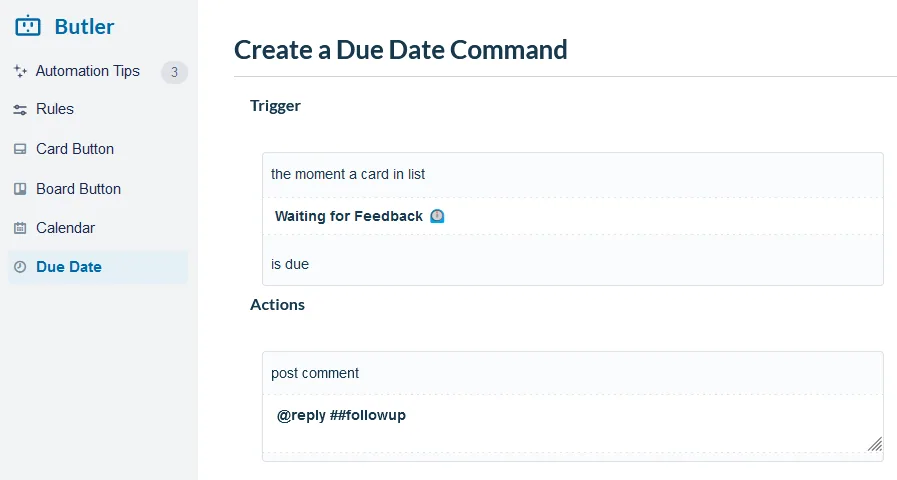
In the rule above, the “##followup” part of the automation inserts the Saved Reply with the keyword ‘followup’. If you’re not sure how to set up a Saved Reply, you can learn more about that in our help center.
Of course, your follow-up email can be anything you like! If you’re looking to re-engage a potential customer, here’s an example of what your Saved Reply might look like in our example CRM workflow.
Hi {% Customer_First_Name %},
I’m following up to see if you’d like to have a quick demo call? I’ll be happy to walk you through our product and answer any questions!
Let me know a time that works for you, or book a meeting in our calendar here [link to your calendar].
Best wishes,
{% userFirstname %}
Remember, you can include variables and Custom Fields to personalize your automated email and address your lead by name. For more detail, check out our guide on how to use variables in your Saved Replies.
A look at our rules in action!
These two automation rules work in tandem to send out a follow-up email after X number of days. Here’s what it looks like once the rules have been triggered in your Trello workspace:
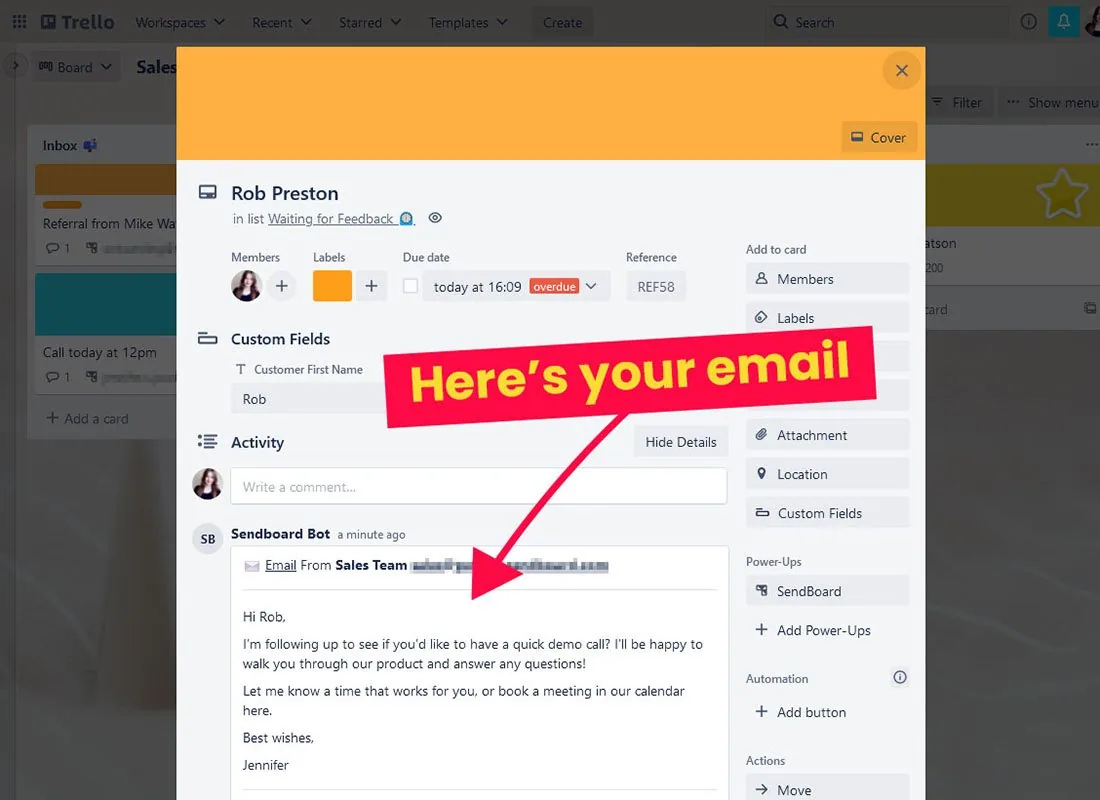
An optional rule
If a customer replies, move the card out of ‘Waiting for Feedback’
Now, what if your customer replies before the three days are up? As long as the card is in ‘Waiting for Feedback’, the automation will be triggered when the card is due, which could result in an awkward, unwanted follow-up!
Here’s an optional rule to help you save face. Essentially, if a customer replies, this rule automatically moves the card out of the list ‘Waiting for Feedback’ and back into the ‘In Progress’ list. Here’s what the rule looks like:
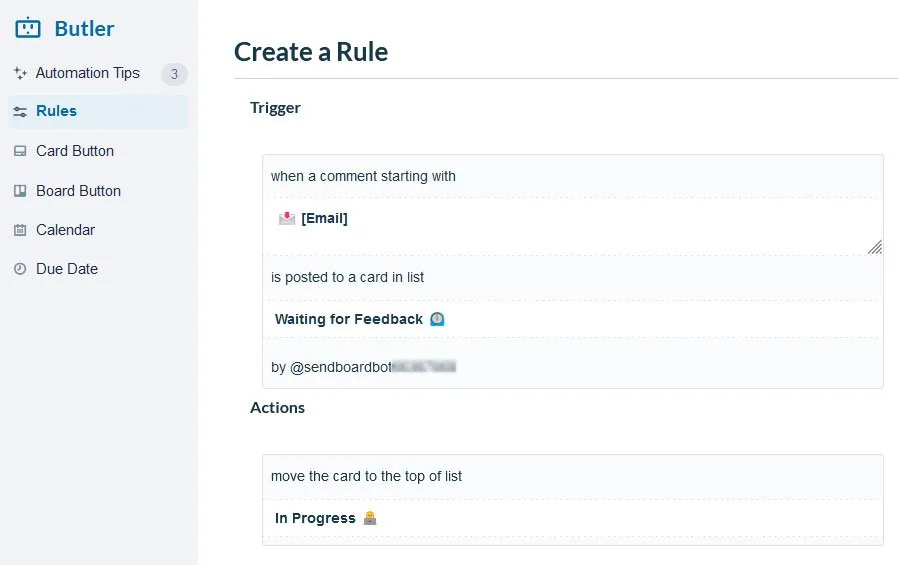
When you receive an email to your Trello board, it is posted by your SendBoard bot as a comment on the card. This rule makes use of that by recognizing incoming emails as comments posted by the Sendboard bot that start with the text ‘📩 [Email]’.
Happy automating!
By sending an automatic follow-up email after a set number of days, you’re free to focus on more important tasks, safe in the knowledge that your automation is doing the busy-work for you!